The problem it solves
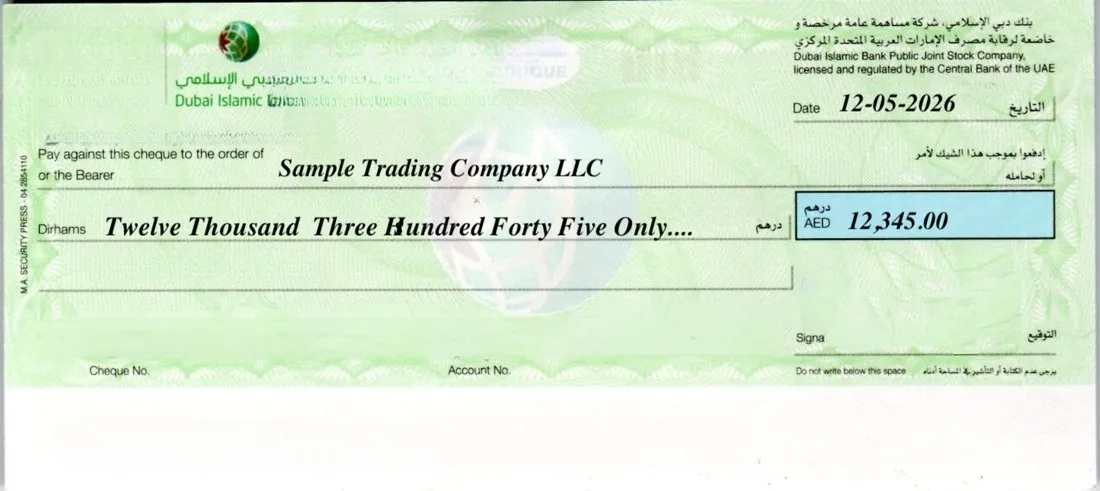
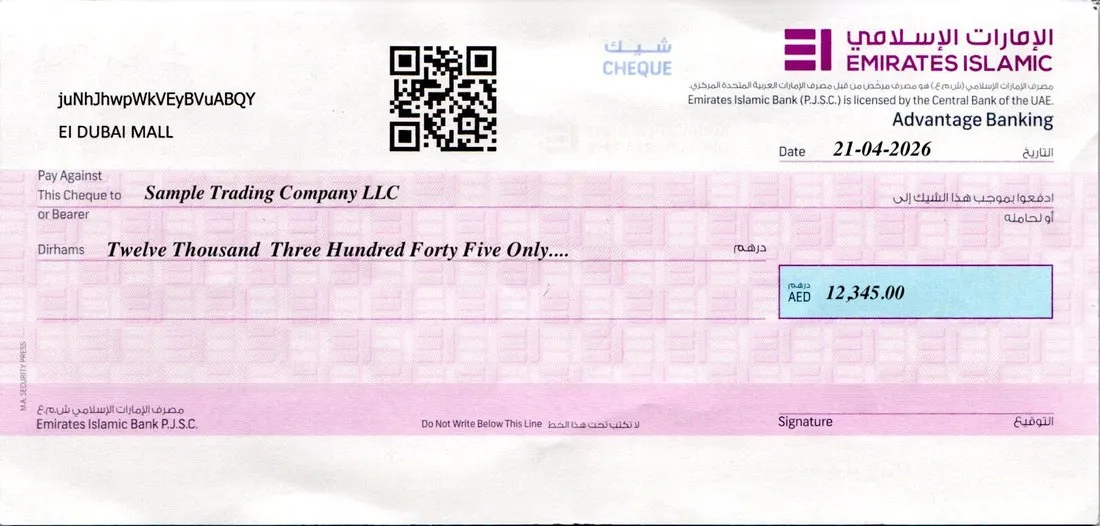
Traditional cheque printing software needs a template for each bank's cheque. That's fine when you print on your own company's cheques. But a real estate developer or landlord often prints on the client's cheques: a buyer arrives with a cheque book from one bank, the next from another, each leaf a different size and layout. Measuring a new template for every one isn't practical, so most teams end up writing them by hand.
Ai cheque scanning removes the template step.
How it works, step by step
- Scan the client's cheque. Use any document scanner or a phone photo: one leaf or the whole cheque book.
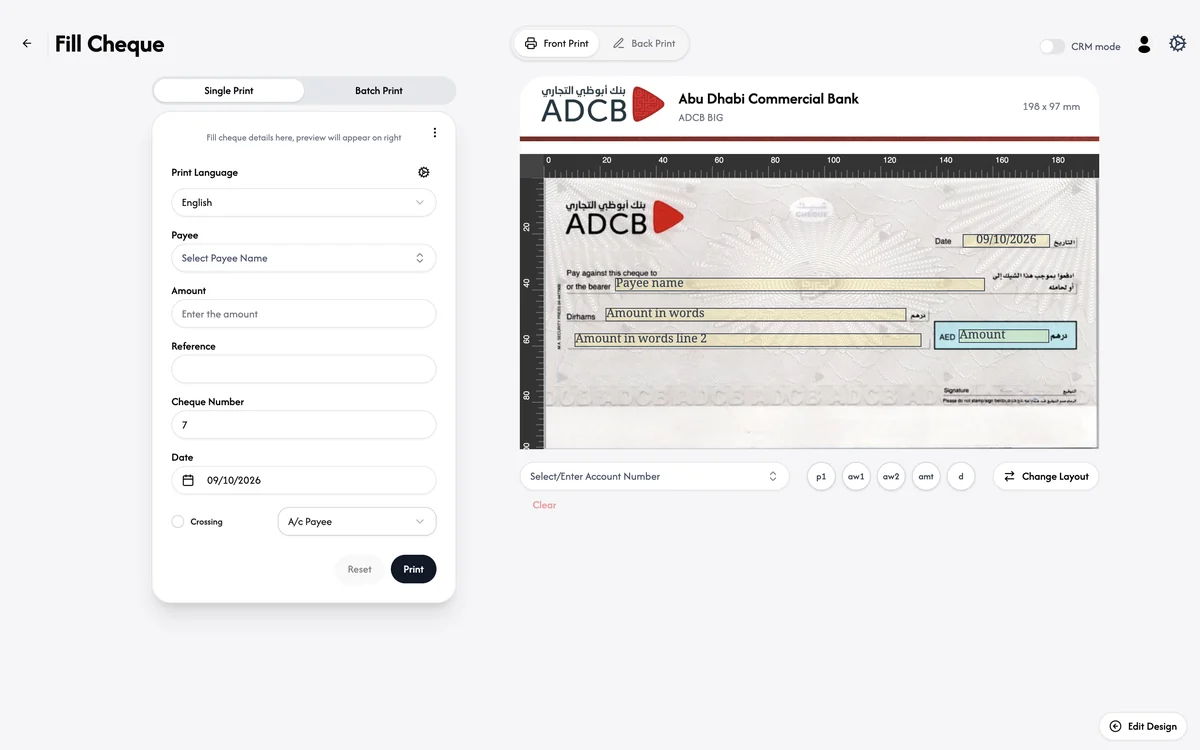
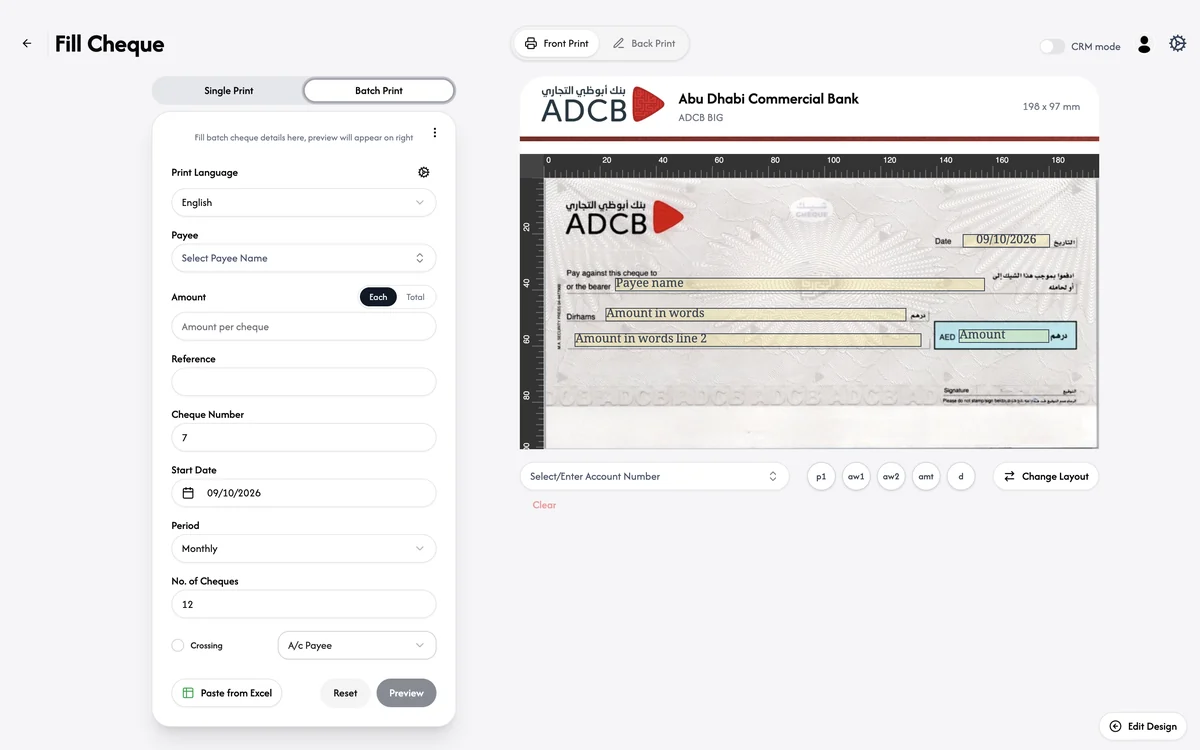
- Ai detects the bank and layout. ChequeEazy identifies the bank and cheque type, measures the leaf, and finds every field: date, payee name, both lines of the amount in words, and the amount in figures. In the example below, it recognised an ADCB BIG cheque at 198 × 97 mm.
- Check the preview. The detected layout appears on a millimetre ruler with each field marked. If anything needs nudging, Edit Design lets you move or resize it. The layout is saved, so the next cheque from that bank prints immediately.
- Fill in the details. Choose the payee, type the amount, and set the cheque number, date and an optional reference. ChequeEazy writes the amount in words for you, in English or Arabic, and adds the A/C Payee crossing if you select it.
- Print. Every field lands exactly where the bank expects it, aligned automatically.
Single cheque or a whole batch
Use Single Print for one cheque, such as a booking payment or a one-off refund. Switch to Batch Print to print a full list in one go, each cheque with its own amount, date and cheque number, all on the client's detected layout.
In Batch Print, enter the amount per cheque or the total to be split, the start date, the period (such as monthly) and the number of cheques. If the schedule is already in a spreadsheet, use Paste from Excel. Preview the list, then print.
Where it's most useful: real estate instalments
Off-plan sales and tenancies in the UAE are paid in instalments, very often by cheque. A typical day for a developer's or landlord's finance team looks like this:
- A buyer signs for a unit with a payment plan of, say, eight instalments.
- They hand over their own cheque book, from whichever bank they use.
- The team scans one leaf; ChequeEazy detects the layout.
- They load the instalment schedule into Batch Print and print all eight cheques, with the right amounts and dates, while the buyer waits.
- The buyer signs each cheque, and every one is recorded against the sale.
No handwriting, no amount-in-words mistakes, and no template to build for a bank you've never seen before.
What gets recorded
Every printed cheque is kept with its number, date, payee and amount, so finance can track each instalment to clearance. With a CRM integration, the schedule can come straight from Salesforce or Dynamics 365, and the cheque details go back to the same record.